T8FB/T8S Firmware Upgrade Introduction
Attention: The Driver must be installed first before installing the firmware upgrade tools and the parameter setup computer software
Step1. Install the Driver
Click the link to check how to install the Driver:
https://www.radiolink.com.cn/driver_for_T8FB/T8S_firmware_upgrade_tool_installation
Step2.
Go tohttps://www.radiolink.com/t8s_firmwares
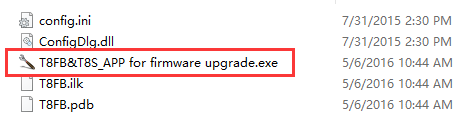
Download“T8FB-T8S_APP For Firmware Upgrade-ComputerOnly.zip” and unzip it, connect the T8S/T8FB transmitter to the computer via a USB data cable, then open the unzipped folder. Click the “T8FB&T8S_APP for firmware upgrade.exe” program.
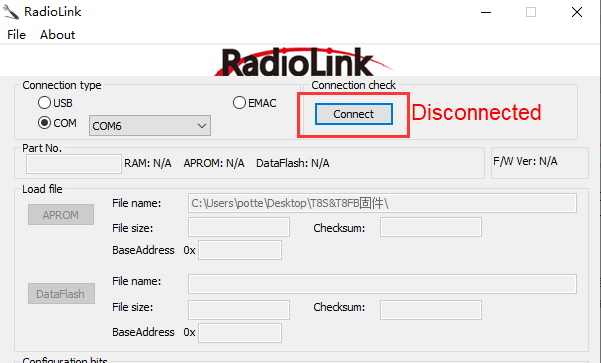
Choose the correct COM port.
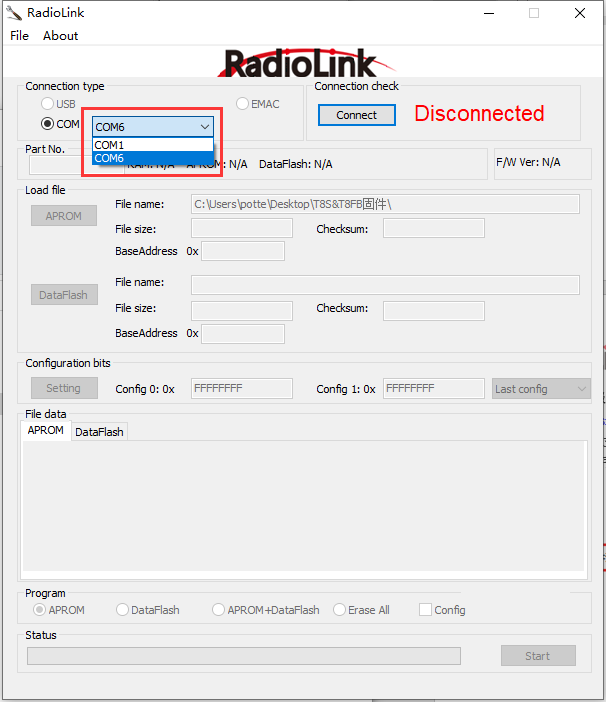
After computers are connected to T8S/T8FB via a USB data cable, there may appear many selectable COM ports. The COM port can be found according to the following methods:
1) Press “win+R” on the keyboard;
2) Type “devmgmt.msc”, and type “ENTER”;
3) In the device manager, click on “COM AND LPT”, then you can find the correct COM port.
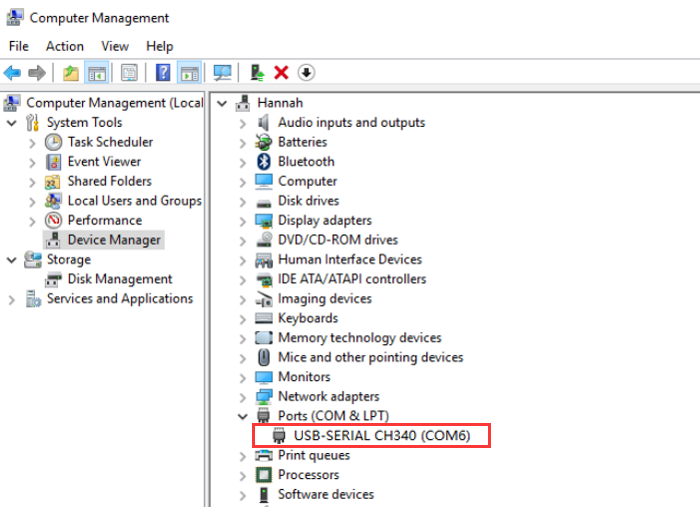
After computers are connected to T8S/T8FB via a USB data cable, there may appear many selectable COM ports.
Note: If you have found a COM port in the device manager, but the corresponding COM port is not displayed on the firmware upgrade software. Then you can try to close this firmware upgrade software and reopen it.
Keep the T8S/T8FB power off and then connect the T8S/T8FB to the computer via a USB cable.
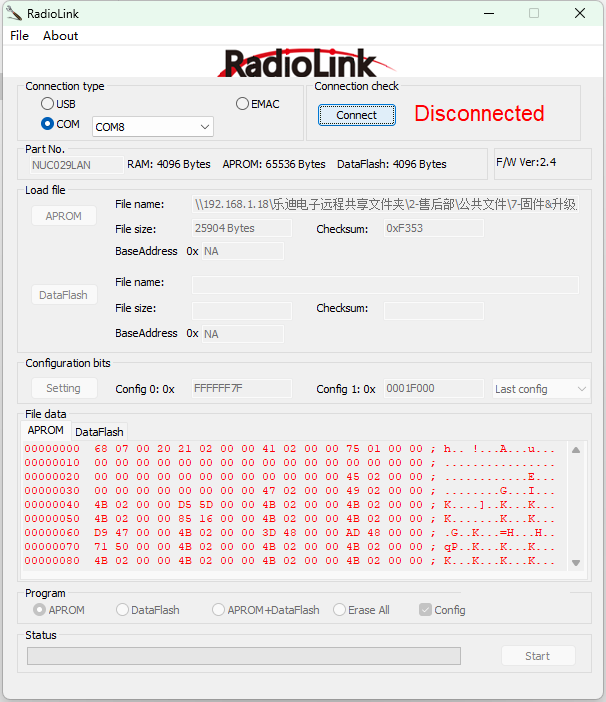
After choosing the correct COM port, click “Connect”, and then the red “Disconnected” will change to “Detecting....”. This indicates that the firmware upgrade software has entered the detection state.
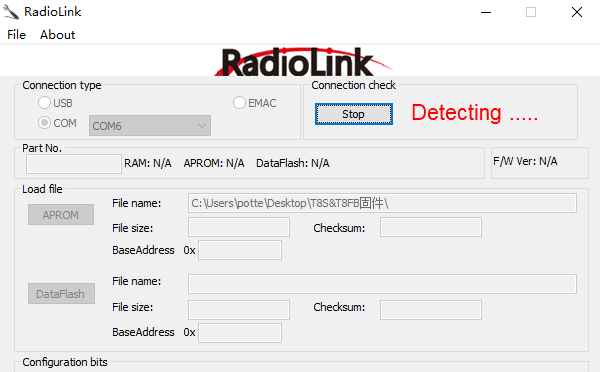
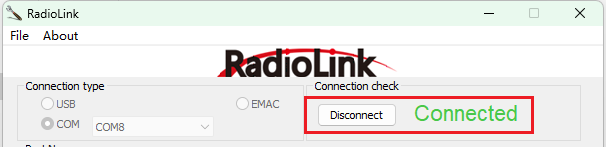
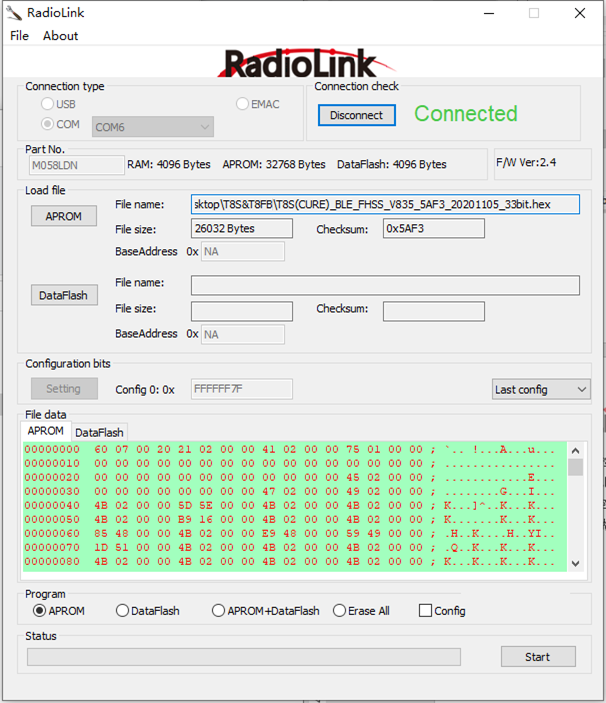
After entering the detection state, press the T8S power button/push the T8FB power button, then “Detecting....” will turn to “Connected”, which means that the firmware upgrade software is successfully connected to T8S/T8FB.
Note:
① You need to open the upgrade software and click Connect before you press the power button of T8S/T8FB. If the T8S/T8FB is turned on when or before you click “Connect”, it will cause the connection to fail.
② If you press the power button of T8S/T8FB, but T8S/T8FB cannot be turned on, this may be caused by a firmware error. This problem can be solved by installing the right firmware.
After T8S/T8FB is connected with the firmware upgrade software successfully, click the “APROM” button to select the correct firmware.
The firmware can be downloaded from https://www.radiolink.com/t8s_firmwares
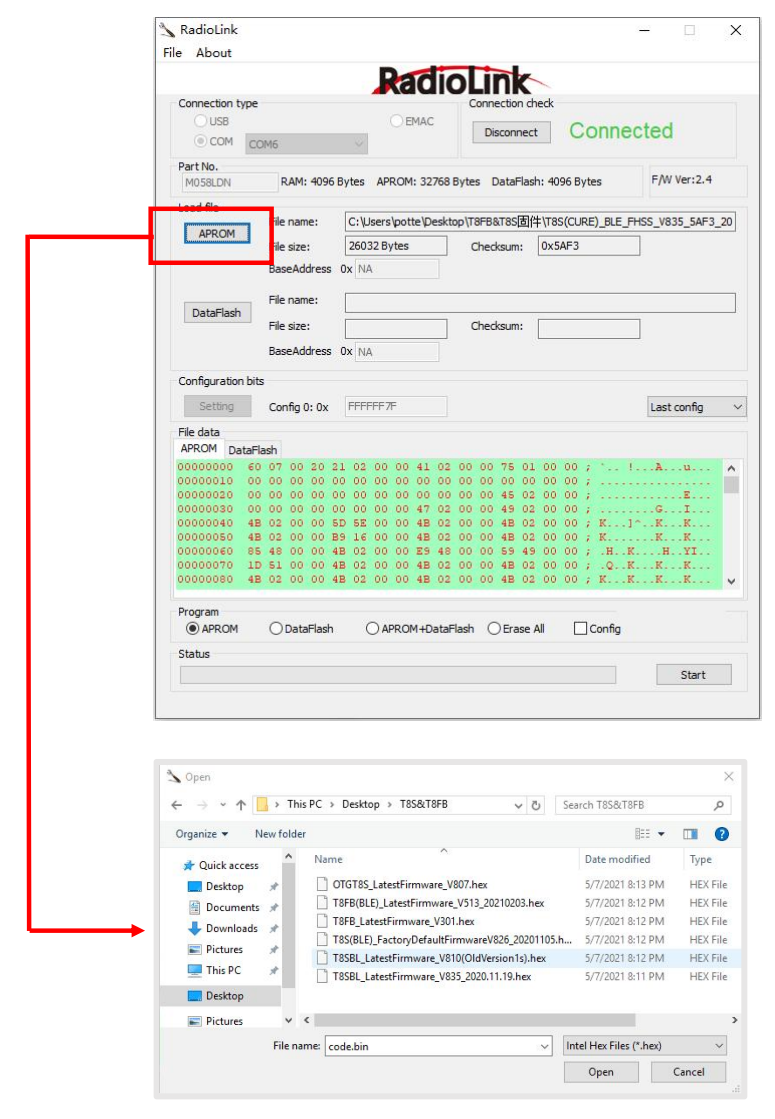
After selecting the correct firmware, make sure that “APROM” is selected in the “Program”, and then click “Start”.
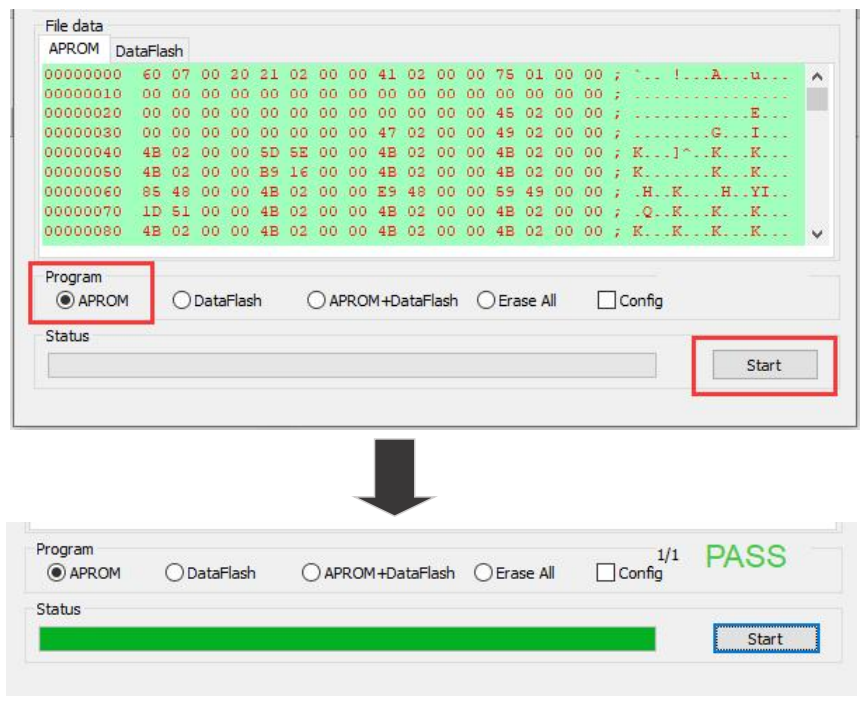
When the green “PASS” appears, it means that the firmware flashing is successful.
Click Disconnect, and the green "Connected" turns to red "Disconnected" which means the T8S/T8FB is disconnected from the firmware upgrade tool. Then disconnect the USB cable, turn on the T8S/T8FB, and connect to the parameter setup APP can check the firmware version.